Understanding how to customize a shopify theme settings is one of the most important things you can do in your first week as a store owner.Your Shopify theme is the first thing every customer sees. A professional, consistent store builds trust before a single word is read. A store with default placeholder text, mismatched colors, and a generic layout tells the customer — consciously or not — that the business behind it is not serious.
Learning how to customize your Shopify theme is one of the most important things you can do in your first week as a store owner. The good news is that modern Shopify themes use an Online Store 2.0 architecture with drag-and-drop sections and App Blocks, meaning you can build a fully professional store appearance without touching a single line of code.
This guide walks you through every customization step in sequence — from theme selection to mobile testing — with Pakistani eCommerce context built in throughout.
Can You Customize a Shopify Theme Without Coding? — Quick Answer
Yes. Shopify’s built-in Theme Editor lets you customize your logo, colors, fonts, homepage sections, navigation, product pages, collection pages, and footer without writing any code. Modern Shopify themes (Online Store 2.0) support drag-and-drop sections on every page, and App Blocks let you add features like WhatsApp chat buttons and review widgets directly in the editor. Most beginners can build a professional-looking store using the free Dawn theme in 2-3 hours.
What to Prepare Before You Start
Going into the theme editor without these ready means stopping halfway through to collect assets — which breaks your workflow.
Prepare these before opening the editor:
- Logo file — PNG with transparent background, minimum 400x200px
- Brand colors — your primary color hex code (e.g., #9A3EF7)
- Font preference — one heading font, one body font
- Homepage banner image — 1600x600px minimum, compressed
- About Us text — 2-3 sentences about your brand
- Product photos — uploaded to Shopify already
- Policy pages — generated and published
- Contact information — email, WhatsApp number, city
Where to Start: How to Customize a Shopify Theme Settings
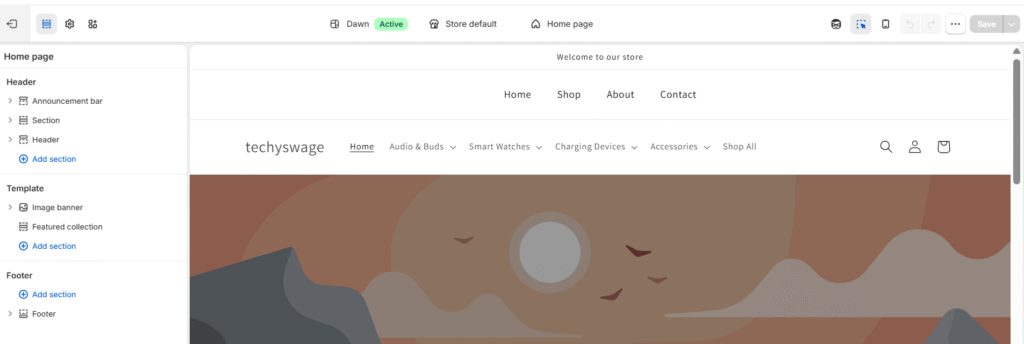
Go to your Shopify admin → Online Store → Themes → Customize
The editor opens with three main areas:
- Left panel — sections list and settings
- Preview area — live preview of your store
- Top bar — switch between pages, mobile/desktop preview
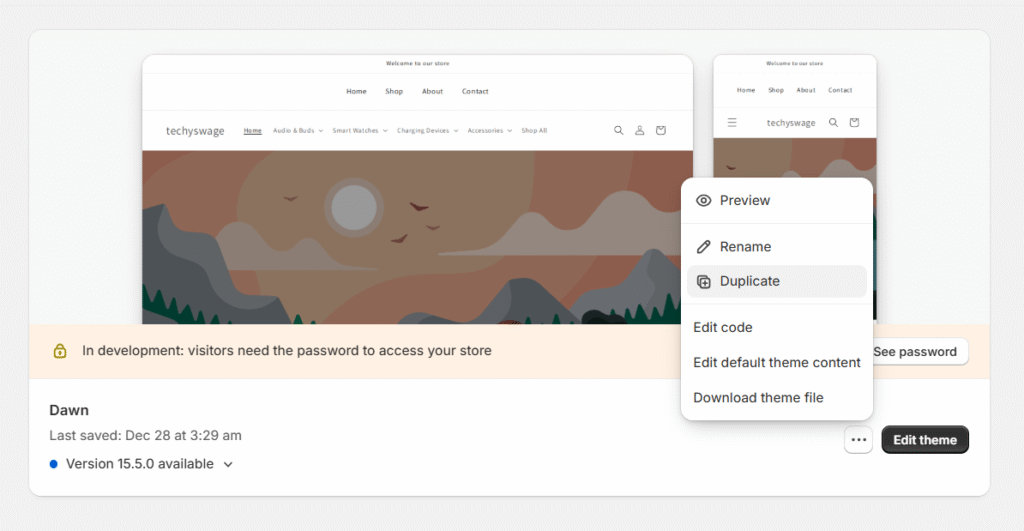
Important before touching anything: Duplicate your theme first.
Go to Online Store → Themes → click the three dots next to your active theme → Duplicate. Always edit the duplicate. If something breaks, your live store remains untouched. This is the single most important habit for beginner theme editors.
Understanding Online Store 2.0 — What It Means for You
Modern Shopify themes use Online Store 2.0 (OS 2.0) architecture. This means:
Sections everywhere — Previously, drag-and-drop sections only worked on the homepage. With OS 2.0, you can add, remove, and reorder sections on any page — product pages, collection pages, about pages — without code.
App Blocks — Instead of adding apps through code injection, you can insert app functionality (WhatsApp chat buttons, review widgets, trust badges) directly as blocks within your theme editor. Look for “Apps” in the section panel when editing product pages.
If your theme supports OS 2.0 (Dawn, Sense, Craft, and most themes released after 2021 do), you have full drag-and-drop control across your entire store.
Step 1 — Select the Right Theme
Before customizing, confirm you have the right theme for your product type.
| Store Type | Recommended Free Theme | Why |
| Fashion / Clothing | Dawn | Clean, fast, flexible |
| Beauty / Skincare | Sense | Fresh aesthetic, good for product focus |
| Handmade / Islamic gifts | Craft | Premium, artisan feel |
| Modern accessories | Refresh | Bold, conversion-focused layout |
| Home decor | Dawn | Versatile, works for most categories |
| Electronics | Refresh | Clean product display |
For most Pakistani sellers starting out, Dawn is the right choice. It is the fastest free theme, mobile-optimized, and flexible enough for most product categories. Do not buy a premium theme until you have validated your product and are generating consistent revenue.
Step 2 — Upload Your Logo and Set Brand Identity
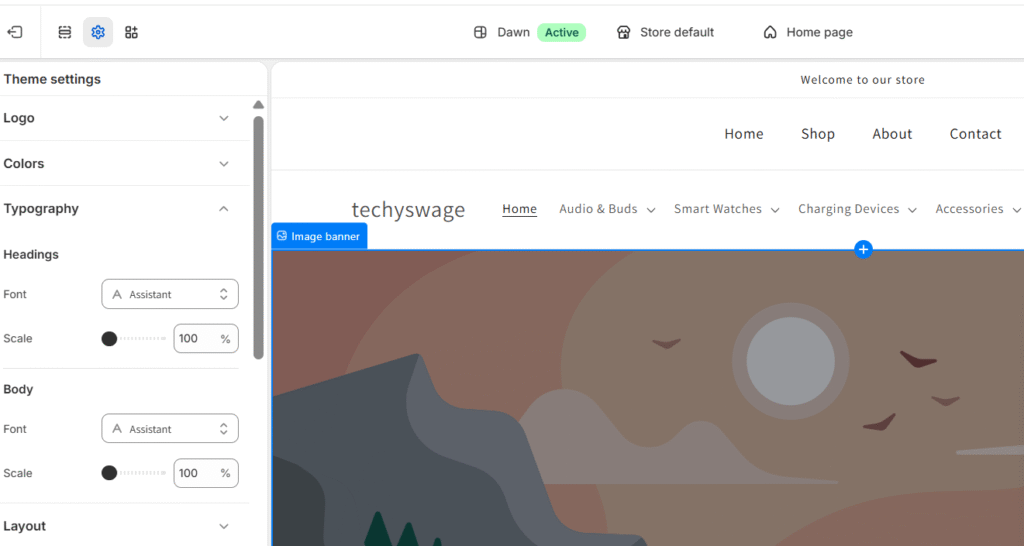
In the Theme Editor, go to Theme Settings (bottom of the left panel) → Colors, Typography, Buttons
Logo
- Click Header in the left panel
- Upload your logo PNG
- Set logo width — 150-200px works for most headers
- Test how it looks on mobile — shrink your browser or use the mobile preview
Colors
Set your brand colors in Theme Settings → Colors:
- Background: White (#FFFFFF) for most stores
- Primary buttons: Your brand color
- Text: Dark navy or black for readability
Stick to two colors maximum — your brand color and a neutral. Multiple colors make a store look cluttered and amateur.
Typography
In Theme Settings → Typography:
- Heading font: Choose one — Playfair Display, Montserrat, or similar
- Body font: Open Sans or Inter for readability
- Never use more than two fonts — heading and body
Step 3 — Customize Homepage Sections
The homepage is your store’s most important page. Every section should serve a purpose — remove anything that does not.
Hero/Banner Section
This is the first thing visitors see. Most new Pakistani stores make this mistake:
❌ Wrong: “Welcome to Our Store — Browse Our Collection”
✅ Right: “Premium Unstitched Suits with Cash on Delivery Across Pakistan”
The second version tells the customer exactly what you sell and removes their biggest concern (payment) immediately. Specificity converts. Welcome messages do not.
Banner image recommendations:
- Size: 1600x600px
- Format: WebP or compressed JPG — never upload a 5MB image
- Pakistani mobile networks are often slow — a heavy banner image will cause visitors to bounce before your store loads
Featured Products Section
Show your 4-6 best-selling or most visually appealing products. Do not show your entire catalog here.
About Us Teaser
One short paragraph about your brand with a “Learn More” button linking to your About page. Trust matters in Pakistani eCommerce — buyers want to know who they are ordering from.
Remove Placeholder Sections
Scroll through every homepage section. Delete any section containing:
- Lorem ipsum text
- Generic stock photos
- “Coming Soon” placeholders
- Empty product grids
A store with placeholder content tells every visitor the business is not ready. This is the single most common mistake on new Pakistani Shopify stores.
Step 4 — Set Up Navigation Menu
Go to Online Store → Navigation (not inside the theme editor — this is a separate menu)
Recommended main menu structure:
- Home
- Shop (or your main collection)
- About
- Contact
Keep it simple. A navigation menu with 8 items overwhelms mobile users. Four to five items maximum for a new store.
For mobile: The hamburger menu (three lines) automatically appears on mobile for most themes. Test it on your phone — confirm every menu item works and links to the right page.
Step 5 — Customize Product Pages
Product pages are where conversions happen. Every element should reduce friction and build trust.
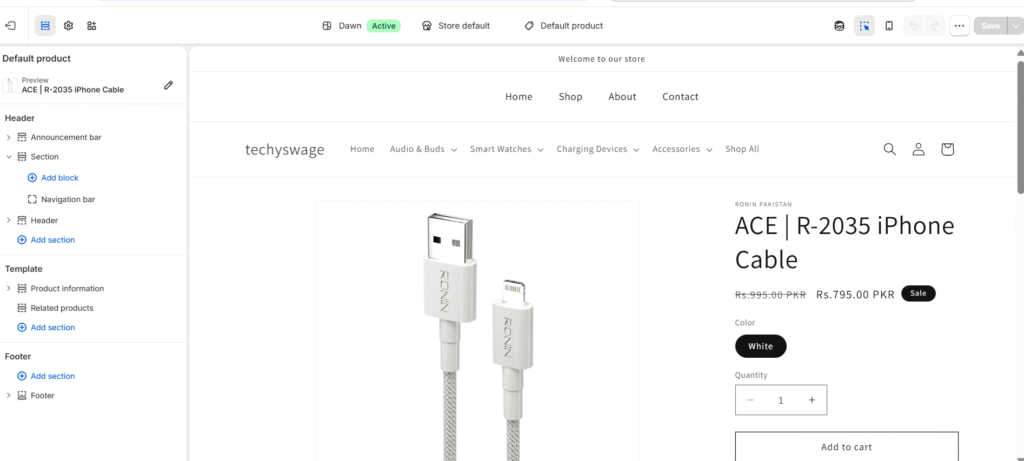
In the Theme Editor, navigate to a product page using the top dropdown.
Layout Settings
- Product images: Set gallery to show multiple images — customers want to see products from different angles
- Add to cart button: Should be prominent, above the fold on mobile
- Image zoom: Enable — customers want to inspect products closely
Trust Badges for Pakistani Stores
Pakistani buyers have a higher trust deficit than international buyers — they are cautious about new stores and frequently expect scams. Add these trust signals prominently on your product pages:
- “100% Original Product”
- “Cash on Delivery Available”
- “Leopards / Trax Delivery — 2-4 Days”
- “Easy Returns”
You can add these as text under the Add to Cart button, or use an App Block from a trust badge app installed from the Shopify App Store.
If you want to hunt best products, read our guide Best Products to Sell on Shopify Pakistan.
App Blocks on Product Pages
If you have installed a WhatsApp chat app or review app, add them as App Blocks directly on the product page:
- In the theme editor on a product page, click “Add block” in the left panel
- Select “Apps” → choose your installed app
- Position it below the Add to Cart button
This keeps your product page clean while adding conversion-boosting elements without code.
Learn about Best Free Shopify Apps Pakistan
Step 6 — Customize Collection Pages
Collection pages are often ignored by new sellers — which means missing easy SEO and conversion opportunities.
In the Theme Editor, navigate to a collection page.
Settings to configure:
- Products per row: 2 on mobile, 3-4 on desktop
- Sort options: Enable price, newest, best-selling
- Filter options: Size, color, price range where relevant
- Collection image: Add a banner image to each collection
Collection description: Add 80-100 words describing what the collection contains. This is an SEO opportunity most Pakistani sellers miss entirely. A collection page for “Women’s Formal Wear” with a short keyword-relevant description ranks better than one with no text at all.
Step 7 — Customize Your Footer
The footer is where Pakistani customers look for trust signals before placing an order.
Essential footer elements:
- Links: About, Contact, Refund Policy, Shipping Policy, Privacy Policy
- WhatsApp number — prominently displayed
- Pakistani city/address — “Based in Lahore, Pakistan” signals legitimacy
- Local contact number — adds authenticity, reduces scam perception
- Social media links
- Copyright text
Why the address matters: Many Pakistani buyers are suspicious of online stores with no physical presence mentioned. Even “Serving customers across Pakistan from Lahore” is enough to build basic geographic trust.
Step 8 — Mobile Optimization
Over 70% of Pakistani online shoppers browse and buy on mobile. If your store looks good on desktop but broken on mobile, you are losing the majority of your potential customers.
What to test on mobile (use actual phone, not just browser resize):
- Buttons: Can you tap Add to Cart easily? Are buttons large enough for fingers?
- Menu: Does the hamburger menu open and close correctly? Do all links work?
- Font sizes: Is body text readable without zooming?
- Image cropping: Are banner images cropped awkwardly on mobile?
- Banner visibility: Is your headline readable over the banner image on a small screen?
- Checkout flow: Go through the full checkout on mobile — confirm every step works
- Page speed: Open your store on mobile data (not WiFi) — if it takes more than 4 seconds to load, your images are too heavy
Speed tip: Install TinyIMG (free app) to compress all product and banner images automatically. Large uncompressed images on 3G/4G Pakistani mobile networks cause bounce rates that no amount of marketing can overcome.
Global Theme Settings — What Most Beginners Miss
In the Theme Editor, Theme Settings at the bottom of the left panel contains site-wide settings that affect every page.
Key settings to configure:
- Colors: Set your full brand palette here — applies everywhere automatically
- Typography: Set heading and body fonts once — applies to every page
- Buttons: Style your primary and secondary buttons consistently
- Favicon: Upload a small square version of your logo (32x32px) — this appears in browser tabs. The default Shopify favicon is a red bag that screams “new store using default settings”
- Social media: Add your social links here once — they appear in footer automatically
- Animations: Keep subtle or off — heavy animations slow load times on mobile
Free vs Premium Shopify Themes
| Feature | Free Themes | Premium Themes |
| Cost | Rs. 0 | Rs. 15,000-60,000+ |
| Design quality | Good | Excellent |
| Built-in features | Standard | Advanced |
| Speed | Fast | Varies |
| Support | Community | Developer support |
| Best for | Beginners, new stores | Established brands |
Honest recommendation: Start free. Dawn is a genuinely good theme — not a compromise. Upgrade to a premium theme only when your store is generating consistent monthly revenue and you have specific feature needs that free themes cannot meet.
Common Theme Customization Mistakes
Using too many fonts — Three or more fonts on one store looks chaotic. One heading font, one body font. That’s it.
Inconsistent brand colors — Using different shades of your color across sections because you did not set it in Theme Settings. Set colors once in Theme Settings so they apply everywhere consistently.
Uploading massive images — A 5MB banner image is the single most damaging thing you can do to your store speed. Pakistani customers on mobile data will leave before it loads. Compress everything to under 300KB using WebP format or TinyIMG.
Keeping placeholder content — Any lorem ipsum text, stock photo people, or “Coming Soon” sections left visible destroys credibility instantly.
Ignoring the favicon — The default Shopify favicon (a red shopping bag) signals to experienced buyers that you have not properly set up your store. Takes 2 minutes to fix.
Cluttered homepage — More sections does not mean better. A clean, focused homepage with 4-5 relevant sections converts better than one trying to show everything.
Not testing on a real phone — Browser resize does not replicate actual mobile behavior. Test on a real Android device on mobile data before going live.
Professional Shopify Store Checklist
Before going live, verify every item:
Branding:
- Logo uploaded and correct size
- Brand colors consistent across all sections
- Favicon set — not default Shopify icon
- No more than two fonts used
Content:
- No placeholder or lorem ipsum text visible
- Homepage banner has specific, compelling headline
- All product photos uploaded and high quality
- About page complete
- Contact page with WhatsApp number and city
Navigation:
- Main menu working correctly
- All menu links go to the right pages
- Mobile hamburger menu working
Product Pages:
- Trust badges visible — COD, original, delivery info
- Multiple product images where available
- Add to Cart button prominent above fold on mobile
Footer:
- All policy pages linked
- WhatsApp number visible
- Pakistani city/address mentioned
- Social media links working
Mobile:
- Tested on actual phone
- All buttons tappable
- Page loads in under 4 seconds on mobile data
Frequently Asked Questions
Can I customize a Shopify theme without coding?
Yes. Shopify’s Theme Editor uses drag-and-drop sections and App Blocks — no coding required. You can customize colors, fonts, logo, homepage layout, product pages, collection pages, and footer entirely through the visual editor.
How do I change my Shopify theme without losing products?
Products, orders, and customer data are stored in Shopify, not in the theme. You can switch themes or customize your current theme without losing any store data. Always duplicate your theme before making major changes.
What is the best free Shopify theme in 2026?
Dawn is the best overall free Shopify theme in 2026 — fast, flexible, and suitable for most product categories. Sense is best for beauty and skincare. Craft works well for handmade and premium products.
Will changing my Shopify theme affect SEO?
Theme changes do not affect your page content, meta titles, or descriptions — those stay in Shopify regardless of theme. However, themes affect page speed, which can impact search performance. Switching to a faster theme can actually improve SEO.
How do I add a WhatsApp button to my Shopify store?
Install a WhatsApp chat app from the Shopify App Store, then add it as an App Block on your product pages through the Theme Editor. No code required with OS 2.0 themes.
Can I switch Shopify themes later?
Yes. You can install new themes and preview them before publishing. Switching themes is non-destructive to your products and orders.
Which free Shopify theme is the fastest?
Dawn is consistently among the fastest free Shopify themes based on PageSpeed scores. Its lightweight code and minimal animations make it ideal for Pakistani mobile users on slower connections.
How do I preview a theme before publishing?
In Online Store → Themes, click the three dots next to any unpublished theme → Preview. You can browse your full store with the new theme without affecting what customers see.
Final Thoughts
A well-customized Shopify theme is not about looking fancy — it is about looking trustworthy. In Pakistani eCommerce, where customers are cautious about new stores and skeptical of scams, a professional appearance is one of your most important conversion tools.
Spend 2-3 hours on theme customization before launch. Set your colors and fonts in Theme Settings so they apply everywhere consistently. Fill every section with real content. Add Pakistan-specific trust signals — COD availability, local address, WhatsApp contact — where customers look for them. And test everything on an actual mobile phone before going live.
For a complete guide on setting up every other aspect of your Shopify store, read: How to Set Up a Shopify Store in Pakistan — Complete 2026 Guide.