Learning how to add products in shopify looks simple from the outside — there is a form, you fill it in, you click Save. But most Pakistani sellers fill in only the obvious fields (title, price, image) and skip the settings that actually affect whether their products get found on Google and whether customers trust them enough to place a COD order.
This guide covers every field on the Shopify product page — what each one does, what to put in it, and which ones matter most for Pakistani sellers specifically.
How to Add Products in Shopify — Quick Answer
Go to your Shopify admin → Products → Add product. Fill in the title, description, images, pricing, inventory, shipping weight, and variants. Scroll down to the SEO section and add a meta title and meta description. Click Save. The product is now in your store — publish it to make it visible to customers.
How to Access the Add Product Page
- Log into your Shopify admin at yourstore.myshopify.com/admin
- Click Products in the left sidebar
- Click Add product in the top right corner
The product form opens. Work through it top to bottom — do not skip sections.

How to add Product Title
The product title is the first thing customers and Google see.
What to write: Be specific and descriptive. Include the key attribute that makes this product distinct.
❌ Wrong: “Shirt” ❌ Wrong: “Women’s Top” ✅ Right: “White Embroidered Lawn Kurta — Women’s Formal Wear” ✅ Right: “Oud Al Layl Eau de Parfum — 100ml Long Lasting”
For Pakistani sellers specifically: Include fabric type for clothing (lawn, khaddar, chiffon), size or volume for products where it matters, and the occasion or use case where relevant. These are the details Pakistani buyers search for.
SEO note: Your product title becomes your page’s H1 heading and heavily influences what keywords the page ranks for. Write it the way a customer would search for it.
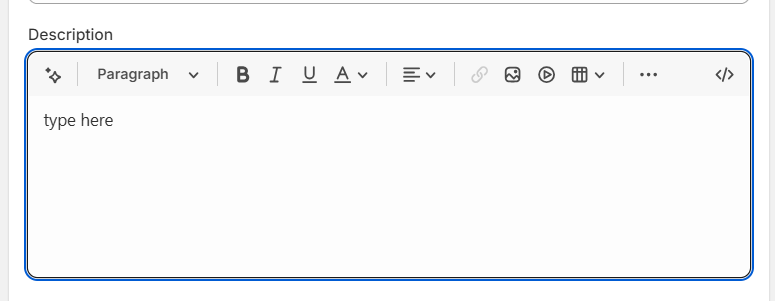
How to set Product Description
The description field is where most new sellers underinvest. A two-line description on a COD product page tells the customer nothing and builds zero trust.
Minimum requirements:
- 150 words for standard products
- 200+ words for clothing, skincare, and anything where specifications matter
- Must mention Cash on Delivery availability
Structure that works for Pakistani buyers:
Opening line: What is this product and who is it for? Middle: Key features explained as benefits — not just a list Sizing/specifications: Size guide reference, dimensions, weight, capacity Trust signals: COD availability, delivery timeline, return policy mention Closing: Subtle call to action
Using AI for descriptions: For a complete guide with prompt templates for every product category, read our guide on How to Write Shopify Product Descriptions with AI.
How to add Product Media (Images and Video)
Click Add media to upload product images.
Image requirements for Pakistani Shopify stores:
Quantity: Minimum 3 images per product — front, back or detail, lifestyle or in-use shot
Quality: Clear, well-lit, in-focus. Blurry images kill conversions on COD stores where customers cannot inspect before delivery.
File size: Compress before uploading. Maximum 500KB per image — use TinyIMG or Squoosh.app to compress. Large images slow page loading on Pakistani mobile networks.
Format: WebP is best for speed. JPG is acceptable. PNG for images with transparency.
Alt text: After uploading each image, click on it and add descriptive alt text. Example: “White embroidered lawn kurta front view” — not just “image1.jpg”
Image order: Put your best, most representative image first — this is what appears in collections and search results.
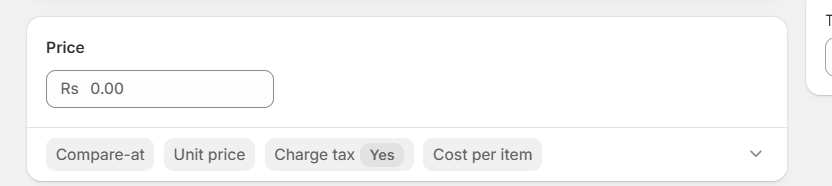
Setting up the Pricing
Price: Enter your selling price. If selling in Pakistan, set your store currency to PKR and enter the PKR price directly.
Compare at price: The original or market price shown as a strikethrough. If your product normally costs Rs. 2,500 and you are selling at Rs. 1,800, enter Rs. 2,500 here. Shopify automatically shows this as a sale.
Use carefully: Only use Compare at price if there is a genuine price difference. Fake “original prices” that are always on sale damage credibility with Pakistani buyers who are already cautious about new stores.
Cost per item: Enter your actual product cost here. This is private — customers never see it. Shopify uses it to calculate profit margins in your reports. Worth filling in accurately for financial tracking.
Taxing: For most Pakistani Shopify sellers selling locally, leave “Charge taxes on this product” unchecked unless you are a registered tax filer with specific obligations. Consult an accountant if unsure.
How to Setup Inventory
SKU (Stock Keeping Unit): A unique code for your product. Use a simple system — “LAWN-WHT-MED” for white lawn medium, for example. Useful for tracking when you have many products.
Barcode: Leave blank unless you have actual barcodes for your products.
Track quantity: Check this if you want Shopify to track your stock levels and warn you when inventory is low.
Quantity: Enter how many units you have.
Continue selling when out of stock: Leave unchecked for most products — you do not want to take COD orders for products you cannot fulfill. Check it only for made-to-order or pre-order products.
For dropshippers: If your supplier’s stock is not tracked in real time, uncheck “Track quantity” to avoid the product showing as out of stock based on Shopify’s count rather than actual availability.
Shipping Settings
This product requires shipping: Leave checked for physical products. Uncheck only for digital products.
Weight: Enter the product weight. This affects shipping cost calculations if you use weight-based rates. For flat-rate Pakistani stores, weight still matters for courier app integrations that use weight for waybill generation.
Customs information: Only relevant for international shipping. Leave blank if selling domestically in Pakistan.
How to add Variants
Variants let customers choose between different versions of the same product — size, color, material.
How to add variants:
- Click Add options like size or color
- Name the option (Size, Color, Material)
- Add the values (Small, Medium, Large / Red, Blue, Black)
- Click Done
Shopify automatically creates a variant grid. You can then set different prices, images, and inventory for each variant.
Common Pakistani product variants:
Clothing: Size (XS/S/M/L/XL/XXL), Color, Fabric Perfumes: Size (30ml / 50ml / 100ml) Skincare: Size, Type (normal / sensitive skin) Home decor: Color, Size
Important: Assign a specific image to each color variant — when a customer selects “Blue,” the blue product image should show automatically. Click on a variant → assign media.
Product Organization
Product category: Select from Shopify’s standard category list. Used for reporting and automatic tax calculations.
Product type: A custom label you create — “Lawn Suits,” “Fragrances,” “Islamic Gifts.” Used for filtering in your admin.
Vendor: Your brand name or supplier name. Useful for filtering products by supplier when you work with multiple vendors.
Collections: Select which collections this product belongs to. A product can be in multiple collections — “Summer Collection” and “Women’s Formal Wear” simultaneously.
Tags: Keywords that describe the product — used for filtering and some app integrations. Example tags: lawn, unstitched, formal, summer, embroidered.
What are SEO Settings (Most Ignored Section)
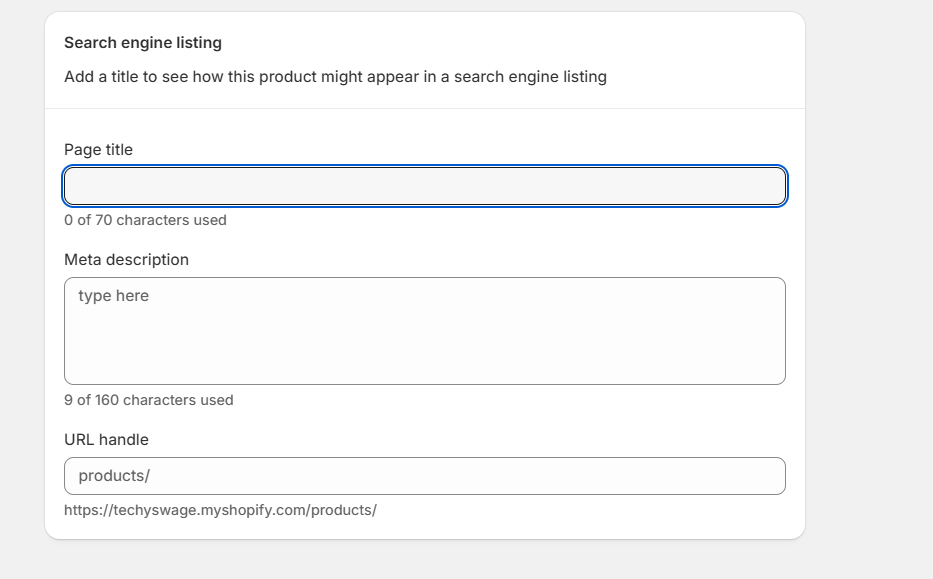
Scroll to the bottom of the product page — you will find the Search engine listing section. Most new sellers never touch this. It is one of the most impactful things you can do for product discoverability.
Page title: This is what appears as the clickable blue link in Google search results. Shopify auto-fills this from your product title, but you can customize it.
Format: [Product Name] — [Key Attribute] | [Store Name] Example: White Embroidered Lawn Kurta — Unstitched | Tech Parallel Store Maximum 60 characters.
Meta description: The 155-character text under your title in Google search results. Write this like a mini advertisement — what is the product and why should they click?
Example: Shop our white embroidered lawn kurta — breathable fabric, hand-done embroidery, COD available across Pakistan. Perfect for summer formal wear.
URL handle: The product’s URL slug. Shopify auto-generates this from your title. Edit it to be clean and keyword-rich.
Auto-generated: /products/white-embroidered-lawn-kurta-unstitched-dupatta-formal Better: /products/white-embroidered-lawn-kurta
Check Product Status and Visibility
At the top right of the product form:
Status:
- Active — product is live and visible to customers
- Draft — product is saved but not visible
Set to Draft while you are still adding content. Switch to Active when the product is ready.
Sales channels: Make sure “Online Store” is checked — otherwise the product exists but customers cannot find it on your store.
Publishing date: Leave blank to publish immediately when you set status to Active. Or set a future date to schedule a product launch.
What a Complete Product Looks Like — Final Checklist
Before saving and activating any product, verify:
- Title is specific and searchable
- Description is 150+ words, benefits-focused, mentions COD
- At least 3 images uploaded, all compressed under 500KB
- Alt text added to every image
- Price correct — Compare at price only if genuine
- Inventory configured correctly
- Weight entered for shipping calculations
- Variants set up with images assigned to color variants
- Product added to correct collection
- SEO title and meta description filled in
- URL handle is clean
Bulk Adding Products — Shopify CSV Import
If you have many products to add, Shopify’s CSV import lets you add them all at once instead of one by one.
How it works:
- Go to Products → Import
- Download the sample CSV template
- Fill in your product data in the spreadsheet
- Upload the completed CSV
- Shopify creates all products at once
When to use it: For stores launching with 20+ products, CSV import saves significant time. The template has columns for every field — title, description, price, variants, images (via URL), SEO settings.
Image note: For CSV imports, images must be hosted at a URL — not uploaded directly. Use Google Drive, Dropbox, or your existing Shopify product images.
Frequently Asked Questions
How many products can I add to Shopify?
Shopify has no product limit on any paid plan — Basic, Grow, or Advanced all support unlimited products.
Can I add products without images?
Yes, but you should not launch products without images. Pakistani buyers on COD stores need to see the product clearly before committing to a delivery they may refuse. Always add at least one good image before making a product active.
How do I add product videos in Shopify?
In the Product Media section, click Add media and select video. Shopify supports direct video upload. Keep videos under 1GB. For Pakistani mobile users, shorter videos (15-30 seconds) load faster.
Can I duplicate a product in Shopify?
Yes. On the Products page, click the three dots next to any product → Duplicate. This copies all settings — useful when you have many similar products with minor variations.
How do I hide a product without deleting it?
Change the product status from Active to Draft. The product remains in your admin with all its data intact but is not visible to customers.
Does adding more products help with SEO?
Yes — more products mean more indexed pages, more keywords targeted, and more opportunities to appear in search results. Each product page is a separate SEO opportunity.
Final Thoughts
Adding products in Shopify is not just about filling in the obvious fields — it is about giving customers enough information and trust signals to place a COD order from a store they have never bought from before. Every field on the product page serves a purpose. Fill them all in.
For the complete store setup guide that covers everything beyond products, read: How to Set Up a Shopify Store in Pakistan — Complete 2026 Guide
For writing better product descriptions with AI, read: How to Write Shopify Product Descriptions with AI